Showing posts with label Tips_and_Tricks. Show all posts

Tuesday, 8 November 2011

Convert DWF to DWG using free tools


.
Here is a re-post of a great little process posted over at What Revit Wants by Luke Johnson, again I had to re-post this it's so good and I love FREE processes.
.
CLICK HERE for the original Posting 
.
These steps helped me to leverage some data from a DWF file and convert it into vector data I could use in a DWG file:
  1. Open DWF in Design Review
  2. Print to PDF using CutePDF (this worked for me)
  3. Open resulting PDF in Gsview (see this link)
  4. Edit - Convert to vector format - dxf
  5. Open DXF in AutoCAD or DWG Trueview
  6. Save as DWG file
Hope this works for you.

Saturday, 16 April 2011

Upgrades and Migration of data and settings from Revit 2011 to 2012.

.
Tips tricks and best practices of upgrade and migration of data and settings from Revit 2011 to 2012.

Things to consider before upgrading or moving to a new version or Revit

  • Project Depth – How far along are you?
  • Project Priority – How Important is loss of time
  • REMEMBER - THERE IS NO GOING BACK or Save as function in Revit
  • Do you meet the resource requirements
    • Training – are you up to speed
    • Technology – Can your computer run the new version

New Version Template

Should you upgrade your template or rebuild your template, here are reasons for both:-

Why Upgrade a existing template?
  • Faster ~ but not all new features may be supported
Why should you build a new template?
  • Fresh
  • New Features will be included
  • Clean up and Optimise ~ spring cleaning
  • Prevent errors by template corruption
Autodesk Product Support recommends starting with a new fresh template with each version of the product.

We are in the process of rebuilding our template at the moment and are documenting it as we go for guidance and a reminder for next year and to share with other \ new Revit users. I will post it here on the blog once completed.

Upgrading families from 2011 to 2012 format using the Content Batch Upgrade Utility Tool

This is available after you have downloaded installed and extracted the installer for Revit 2012. A folder under the root C:\ is created called Autodesk\Autodesk_Revit_Structure_2012_English_Win32-64bit


The files you are after are in the ContentBatchUtility folder. Here are the instructions contained in the readme.txt file

To Use the Content Batch Upgrade Utility:

1. Copy Upgrade_RFA.txt and Upgrade_RFA.bat into the root directory of the library that you want to upgrade.
2. Run the Upgrade_RFA.bat to create the file list to upgrade, famlist_rfa.txt.
3. To launch the utility, from the library directory, drag Upgrade_RFA.txt onto the Revit icon on your desktop.
4. After upgrading, delete all backup files from the library.

Notes:

Make sure all of your .rfa files are not read-only and delete all backup files from the library.
If a particular family fails to upgrade properly, the utility will stop.
If this occurs, open famlist_rfa.txt in Microsoft Notepad, and remove all previously upgraded families and the failed family from the list.
Save famlist_rfa.txt, and re-run the utility.
.

Monday, 1 March 2010

CADclips - Operable Overhead Door Family Video Tutorials


As indicated in the image above, the 5 CADclip tutorials below demonstrate how we can easily and quickly convert an out of the box REVIT overhead door to have the option to be open.

This CADclip is packed with custom family tips that you can use in your own family creation.
Posted by Daryl Gregoire over at Revit Rocks!

Operable Overhead Door Family

Check out


Released Date: December 22, 2009

Well, it's time to learn 'Parametric Conceptual Massing'. In this 3 hours of video training we take it two BIG steps further and incorporate the Building Maker Tools and Material Takeoffs.
Buy Now
Don’t forget to use the 10% Discount "Cadalot" coupon code if you buy anything from the CADclips web site.


COUPON NO LONGER VALID

Tuesday, 16 February 2010

Technology4Design - Finding Unconnected Beams


Pop over to Technology4design blog for a nice little Tip and Trick on how to find the unconnected beams ......... Nice one Lawrence as you say "Short and Sweet!" and so simples!

Wednesday, 25 November 2009

101 Useful YouTube Tutorials for College Students

Amber Johnson sent me a link to a great resource called “101 Useful YouTube Tutorials for College Students” having two daughters, one just completing 6th form and heading to University and the other about to enter 6th form I think its a great resource and worthy of posting here...

While these videos all offer serious advice for adjusting to college, some of them are done with humor, Enjoy.

Here are some other lists that may be useful

100+ Google Tricks That Will Save You Time in School
100 Best Blogs for International Business Students
100 YouTube Videos for Your Business Education & Enlightenment
50 Eye-Opening Lectures for the Marketing Mind
101 iTunes Feeds to Boost Your Business Savvy
100 Must-Read Blog Posts for Networking in a New Age
.

Tuesday, 17 November 2009

Subscript - Superscript and Symbols!

.
In Revit we don’t currently have the ability to enter superscript or subscript and special or greek symbols and we use these kind of things all the time.

Area m²
Volume m³
Density kg/m³
Stress N/mm²
Degrees i.e. roof pitch 36°
Tolerance to be ± 5mm, etc
Diameter i.e. 22Ø Bolt

Being an old fart, and someone who used pre MS-DOS machines, and DOS Versions of AutoCAD, I know that ASCII stands for American Standard Code for Information Interchange. It is the standard format used for text files within computers and online.

As computers can only understand numbers, the ASCII code is the numerical representation of alphabetic and special characters, such as

155 = ø
157 = Ø
167= º
171 = ½
172 = ¼
241 = ±
243 = ¾
248 = °
251 = ¹
252 = ³
253 = ²

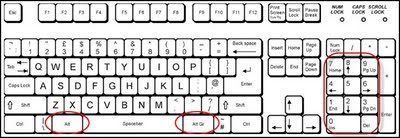
If you know the keystroke value of the special character you want to insert, you can insert the special character directly into your document by using your keyboard.

To do so, open the document and position the cursor where you want the special character to appear. Then, with NUM LOCK on, press and hold the ALT key, and then press the keys on the numeric keypad that represent the keystroke value of the character you want to input.

After you finish typing, release the ALT key, and Windows generates the character you specified.


Perhaps the next version of Revit will give us direct control for Superscript, subscript and symbols with Text line AutoCAD has had for some time.
.

Saturday, 31 October 2009

CADline Tips & Tricks Videos and Documents


Listed below are the Revit Structure and Architecture Tips & Tricks Videos and Documents I’ve found on the CADLine web site. I will be returning to their site and updating the list below on a regular basis, however I’ve placed links to the pages this information came from so that you can check for more up to date content.

In addition you can register for the CADline Revit Tips & Tricks Newsletter using
this link

CADLine Revit Structure Tips & Tricks Videos & Documents

NEW - Revit Structure Tips & Tricks Videos

The purpose of the following Revit Structure Tips & Tricks videos is to enhance your skills and share with you solutions to problems that other users experience. CADlines Tips and Tricks are created from the top 30 support calls logged with their support desk.

Click on the relevant title below to view a Revit Structure Tip & Trick video.

New RST 001 - Beam System 3D Tickbox
RST 002 - RC Detailing with Revit Extensions


Revit Structure Tips & Tricks Documents

Click on the relevant title below to download a Revit Structure Tip & Trick document.

· Roof Decking
·
Setting Braced Frames in Plan View
·
Joining and Un-joining Geometry
·
Sloping Floors
·
Keyboard Shortcuts


CADLine Revit Architecture Tips & Tricks Videos & Documents

NEW - Revit Architecture Tips & Tricks Videos

The purpose of the following Revit Architecture Tips & Tricks videos is to enhance your skills and share with you solutions to problems that other users experience. Their Tips and Tricks are created from the top 30 support calls logged with their support desk.

Click on the relevant title below to view a Revit Architecture Tips & Tricks video.


RAC 001 - Copying Levels
RAC 002 - Working with AutoCAD Masses
RAC 003 - Attaching Walls to Roofs
RAC 004 - Splitting and Painting Faces
NEW RAC 005 - Editing Wall Profiles
NEW RAC 006 - Setting the Project Elevation
RAC 008 - Revit Architecture 2010 Interface PreviewRAC 001 - Copying Levels

Revit Architecture Tips & Tricks Documents

Click on the relevant title below to download a Revit Architecture Tips & Tricks document.

· Calculating Window Areas in Revit Architecture
·
Creating Dormers
·
Surface patterns of object
·
Overhead Details
·
Fire Rated Partition Plans
·
Shaft
·
Fade into the distance
·
Keyboard Shortcuts
·
Quick Conceptual Window Creation
·
Rotated UCS
·
Group Elements
·
Selection Filters
·
Orient View
·
Templates and Units
·
Have you tried the new ability to create non-vertical walls in release 8.1 yet?
·
AutoCAD-style Dimensions in Revit
·
Importing DWG Symbols and Data
·
Solution to problems when printing Transparent Materials

.

Monday, 26 October 2009

Keyboard Shortcuts - New User Interface

Steve Stafford has posted a neat little video that shows how to get too and use the New User Interface supplied as part of the Subscription Advantage Pack

He lists a couple constructive comments for improving it:

Show me Duplicate entries - Add a filter
Promote a Shortcut setting - Up/Down

Steve sounds good to me.........
.

Monday, 12 October 2009

Tips and Tricks ~ Families

As I surf my way around the internet and find tips and trick, articles, blog postings about Family Creation in Revit that may be useful I'm adding links to them here as a reference resource
-------------------------------------------------------------------------------------------------
Inside the Factory ~ Familiy Editor Tips

This season at the Boston Architectural College we started an advanced class to get into more topics such as design options and advanced modeling. The family editor also gets more attention to cover topics such as nesting, parameter linking, type parameters etc..

I thought I would just post some tips and tricks/best practices here for those who are just getting started in the Family Editor. I encourage other experienced "Reviteers" to contribute as well...... "and they have lots of good advice to be found here"

-------------------------------------------------------------------------------------------------
Autodesk Revit Building: Adding Details to your Families Posted: 18/7/2006

An introductory look at how we can control the level of detail that is being viewed inside our families through visibility settings.

-------------------------------------------------------------------------------------------------
Revit Zone

Custom Model Components: Creating an Electrical Socket
Custom Model Components: Part 01: Introduction
Custom Model Components: Part 02: Component Types
Custom Model Components: Part 03: Families, Types, Instances
Custom Model Components: Part 04: Building Blocks
Custom Model Components: Part 05: Solid versus Void
Custom Model Components: Part 06(A): Parameter Power!
Custom Model Components: Part 06(B): Parameter Power!
Custom Model Components: Part 07: Independent versus Hosted
Custom Model Components: Part 08: Family Templates
Custom Model Components: Part 09:The Family Editor (1 of 2)
Custom Model Components: Part 09:The Family Editor (2 of 2)
Custom Model Components: Part 10: Reference Planes & Lines (1 of 2)
Custom Model Components: Part 10: Reference Planes & Lines (2 of 2)
Custom Model Components: Part 11: Adding Parameters (1 of 2)
Custom Model Components: Part 11: Adding Parameters (2 of 2)
Custom Model Components: Part 12: Solid Extrusions (1 of 2)
Custom Model Components: Part 12: Solid Extrusions (2 of 2)
Custom Model Components: Part 13: Solid Sweeps
Custom Model Components: Part 14: Defining Materials (1 of 2)
Custom Model Components: Part 14: Defining Materials (2 of 2)
Custom Model Components: Part 15: Defining Types (1 of 2)
Custom Model Components: Part 15: Defining Types (2 of 2)
Custom Model Components: Part 16: Testing your model
Custom Model Components: Part 17: Using your model Dependent Views explained

-------------------------------------------------------------------------------------------------
Design reform.net

Revit - Family Basics, Modeling a Stool
Revit - Nested Families
Revit - Faced Based Families

-------------------------------------------------------------------------------------------------
Troy Mifsud ~ Web site http://www.mycadd.com/

Vol 5 ~ 20 ~ Custom Families (43:00) 7 minute extract on YouTube

-------------------------------------------------------------------------------------------------

Easy Revit (2009) ~ Video Tutorials by ddufon
http://www.youtube.com/user/ddufon#play/uploads

-9-Modify Families: Doors And Windows Modify family parameters, instance and type properties, and use match properties tool.NEW

-9.2 - Create New Family (Fundamentals)Create a new family from scratch, and apply your own parameters to it. The basics are covered in this video by creating a simple generic 3-d box, and creating parameters for its width, height, and depth.

NEW - 9.3.0 - Create New Window Family (Part 1)Create a window family (two parts). First part: Start a new window family, set up reference planes, dimensions and parameters.

NEW - 9.3.1 - Create New Window Family (Part 2) Create a window family (two parts). Second part: Model the window frame and glass. Edit its materials. Load and place into a project

-------------------------------------------------------------------------------------------------

Andekan ~ New Revit Content Starter Packs

The Andekan Content Packs contain a collection of state-of-the-art, fully parametric Revit families. They are built to speed up your work and improve the quality of your projects by using geometrically precise and light-weight models.

The four new Revit Content Starter Packs, feature over a thousand of the most popular products from manufacturers like Tyler, Zurn, Victaulic, IKEA, Grunfos, Halton, Quartz, Trane, VentAxia, American Standard, Nibco and Smith. There is a free sample family for download on each pack.
.
Click here to learn more

-------------------------------------------------------------------------------------------------

Revit Structure Learning Curve ~ UK Sawn Softwood Structural Timber Family

The families can be downloaded off the AUGI Revit Structure Families area from the thread where I have posted them for UK and European users to harvest them.

-------------------------------------------------------------------------------------------------

CADLearning.com ~ Video Tutorials

In Place Families file

-------------------------------------------------------------------------------------------------

Downloads from CADClips.com

Lesson 1: The Completed Beam Family Introduction
Lesson 2: Parameters and Reference Planes
Lesson 3: Modeling the Main Beam and Flex
Lesson 4: Modeling the Abutments and Flex
Lesson 5: Using Yes / No Parameters to Control Object Visibility
Lesson 6: Use Model Lines and the Linework Tools
Lesson 7: Mental Ray Materials and Rendering

-------------------------------------------------------------------------------------------------

Wednesday, 7 October 2009

How to Create a Rebate in a Concrete Beam

.
The previously explained method of creating a rebate in an object with the use of an extrusion does not work for a concrete beam.
A pocket in a concrete beam does involve a bit of a fiddle but it works.

1. Draw the beam


2. Cut a full depth slot through the beam with a plan size the same as the plan dimensions of the pocket. (Use “Modify” – “Opening by face”).


3. Draw a new beam with the depth equal to the depth of the parent beam, less the depth of the pocket and adjust the length and width to suit the plan dimensions of the pocket


4. Make sure the top of the inserted beam is at the same level as the bottom of the pocket and insert it in the hole


5. As the materials of both the beams are the same, they will join to appear to be the same element.
.

Tuesday, 6 October 2009

How to create a rebate in a floor around a hole

I have found that getting the formatting of pages with multiple graphics on this blog very time consuming and frustrating. (I've now added the guidance note as three jpg's to the foot of this posting)

If you would like an Adobe pdf copy of the Guidance Note I've created for the Revit Users at work about how to form a rebate around an opening in a slab then please email me and I will happily send you a copy.


Guidance Note

Page 1


Guidance Note
Page 2


Guidance Note
Page 3

Friday, 25 September 2009

Tips and Tricks ~ Stairs

As I surf my way around the internet and find tips and trick, articles, blog postings about Stairs in Revit that may be useful I'm adding links to them here as a reference resource

---------------------------------------------------------------------------------------------------------------------------

Steve Stafford ~ Revit Oped ~ Dutch Stair with Revit ~
Blog Posting / Video
Describes the unique Dutch stair winder conditions in some buildings

---------------------------------------------------------------------------------------------------------------------------

Steve Stafford ~ Revit Oped ~ Dutch Stairs - In-Place Stringers
Blog Posting / Video
In-Place family technique to make stringers for a stair when the default boundary/stringers aren't satisfactory.

---------------------------------------------------------------------------------------------------------------------------

Steve Stafford ~ Revit Oped ~ Revit Stair - End in a Landing
Blog Posting / Video
Shows how to sketch a concrete stair that ends in a landing

---------------------------------------------------------------------------------------------------------------------------

Steve Stafford ~ Revit Oped ~ Stair Labels Up Dn and Wall Editing
Blog Posting / Video
Brief explanation of the Up Dn arrow and label issues with Revit Stairs as well as editing a wall profile

---------------------------------------------------------------------------------------------------------------------------

Steve Stafford ~ Revit Oped ~ Revit Activate Dimensions
Blog Posting / Video

---------------------------------------------------------------------------------------------------------------------------

Revit Kid ~ Stair Basics
Revit Kid ~ Stair Question

---------------------------------------------------------------------------------------------------------------------------

Troy Mifsud Web site http://www.mycadd.com/
Vol 4 ~ 16 ~ Stairs (46:06) 9 minute extract on YouTube from his Revit Essentials Course

---------------------------------------------------------------------------------------------------------------------------

Easy Revit (2009) ~ Video Tutorials by ddufon
24-Create StairsCreate Stairs (using the "by Run" method. Define properties for a basic stair, and cut a shaft opening for the stairs.

---------------------------------------------------------------------------------------------------------------------------

Pentagon Solutions ~ Video Tutorials
Pentagon Solutions is an independent company, owned exclusively by its founder members, and is based in Belfast. Their website is currently being rebuilt.
Custom Stairs in Revit Architecture Stage 1 creating custom stairs in Revit Architecture

---------------------------------------------------------------------------------------------------------------------------

CADClips Click here to visit the CADclips web site Click here to see all the CADclips on Youtube
CADclip - HD - REVIT ARCH - Stair Constrain Opening
CADclip - HD - REVIT Architecture Flared Bottom Tread
CADclip - HD - REVIT Architecture Top Riser Cleanup
CADclip - HD - REVIT Architecture Stair with winder and no Railing
CADclip - HD - REVIT Stair Tutorial with a Winder

---------------------------------------------------------------------------------------------------------------------------

Thursday, 10 September 2009

Getting Started Reference Material

I have been recently asked about sources of guidance materal for setting up Revit Structure
There is a lot of good guidance material over at Autodesk University http://au.autodesk.com/


You will need to register to gain access, but check out:-

SE110-2 Essential Revit Structure Project Template Techniques
SE114-1 Get More Out of Revit Structure Content
SE300-2 Get Your Company for Autodesk Revit Structure
SE314-1 Structure or Standards? Do Both
SE318-1 Create and manage your Revit Structure Contents and Library
.

Thursday, 20 August 2009

Tips and Tricks ~ Grid lines

As I surf my way around the internet and find tips and trick, articles, blog postings about Grid Lines in Revit that may be useful I'm adding links to them here as a reference resource

-------------------------------------------------------------------------------------------------


Back to Basics: Grid Lines Dissapearing?!?!?
Adrianna Slusarenko ~ All About Revit

Have you ever had Grid Lines dissapear for no apparent reason? Well, here are a few reasons this would occur, and how you can aleviate the issue:.... read on.......

-------------------------------------------------------------------------------------------------

Missing Grids on Elevation ~ Posted by David Fano Link to Video

So…. Have you ever had the problem where your grid lines will NOT show up in elevations?!?!?! This is of course after you have checked your VG settings and maximized 3d extents, still NOTHING! Chances are the elevation view is not perpendicular to the grid lines.

-------------------------------------------------------------------------------------------------


The Revit Clinic
Disappearing Grid Lines (click the graphic left for link to the video)

New Posting 6th October 2009 Tips for Missing Grid Lines
Here are some tips for things you can check if your grid lines are missing


-------------------------------------------------------------------------------------------------

Wednesday, 22 July 2009

Tips and Tricks ~ Levels

As I surf my way around the internet and find tips and tricks, articles, blog postings about levels in Revit that may be useful, I'm adding links to them here as a reference resource.

-------------------------------------------------------------------------------------------------


Black Levels vs Blue Levels
Wai Chu ~ BIM and Beam
.
What's the difference between black and blue levels? How to turn the levels from black to blue?

The black indicates the level is not mapped to any floor plan, while the blue means the level is mapped with a floor plan.......click link for more


-------------------------------------------------------------------------------------------------


Revit Trick: Invisible Level Lines


CADDHELP ~ by David Harrington

On occasion while using Revit I need to define a level to attach to but don't really want to see these 'attachment' levels in every elevation view that might hit it. Of course with Revit, there are a few workarounds for having access to these levels but not having to actually see them. Click link for more......

-------------------------------------------------------------------------------------------------
Best Practices - Split Level Design
Revitize - Another Revit Blog

Create dedicated Revit Levels for all the change in levels in floor.
Create associated views for all the Revit levels where, you envisage inserting a door / window / wall / room, etc.
Whenever inserting a new element, go to the associated view for that particular Revit Level and then insert the element. ........... see link for full tutorial

-------------------------------------------------------------------------------------------------
The Revit Kid
Harbor House - Part 2 - Levels ~ Video Tutorial

-------------------------------------------------------------------------------------------------
Displaying your levels at the correct above sea level
Revit ~ David Light

This query comes up on a regular basis; How do I display my levels at the correct above sea level? You may be mistaken to think that everything in the world of Revit is flat and new users often get confused by levels............ click link to see more

-------------------------------------------------------------------------------------------------

Thursday, 9 July 2009

Tips and Tricks ~ Walls

As I surf my way around the internet and find tips and trick, articles, blog postings about walls in Revit that may be useful I'm adding links to them here as a reference resource.

NEW

The Revit Clinic
10 Wall Tips ~Continuing the series of 10 quick tips , Click here for the tips for walls:

1. Embed a wall into curtain panel
2. Disallow Join
3. Unlock wall layers
4. Schedule a curtain wall infill as wall or curtain panel.
5. Enable multiprocessing for wall cleanups
6. Wall sweep other than horizontal or vertical
7. Break up a stacked wall
8. Access room bounding for stacked wall
9. Join geomertry on parallel walls
10. Wall Function

-------------------------------------------------------------------------------------------------


Extending Walls - Wall Layers in Revit

Believe it or not, Revit will allow you to extend or contract selected wall layers above or below their base or top constraints!

This means that you can have one part of the wall assembly at a different height to the rest of the same wall. Let me demonstrate:


-------------------------------------------------------------------------------------------------


Guidelines for wall thickness and materials in Revit

By Patrick Villella
Whats the Word on BIM
.
So you’ve seen the endless possibilities for creating wall types that Revit allows and now you’re excited, right? In fact, Revit ships with many preloaded wall types for all sorts of walls – stud, metal stud, gyp, brick, block, and any combination of these materials. But now you have questions.


-------------------------------------------------------------------------------------------------


Defining Wall Layers in Revit
Wall Structure/ Wall Assembly


by GMcDowellJr


-------------------------------------------------------------------------------------------------


Brian Reneham ~ Revit Fix
Openings in Walls. - Revit 2010

It’s quite surprising the amount of different ways you can put an opening in a wall, and they all have slightly different properties in regard to how they behave and how surrounding elements behave. ~ Nice Tutorial


-------------------------------------------------------------------------------------------------


David Light ~ Revit
My staggered wall is not cleaning up!!!!
.
Refer to movie example for clarification.


-------------------------------------------------------------------------------------------------

Wednesday, 8 July 2009

Avatech Solutions Revit Online Tech Tips


Here is a list of just the Revit Online Tech Tips from the Avatch Solutions web site.

To see all the Online Tech Tips for all the products they support use this link

Revit Structure

Revit Structure: An Introduction Posted: 9/6/2009
See how to start a project and the best way to use tools such as templates, menu bars, walls, levels, design bar, shortcut keys, and the project browser.
.
This tech tip shows the steps on how to create a 45 degree structural column tag and bring it into your Revit file.

Revit Structure 2008: Splitting Beams Posted: 28/03/2008
See how to split a beam and attach a column to the underside of the beam.

Revit Structure: Warped Slabs Posted: 24/10/2007
See how to create warped roofs and slabs.

Revit Structure: Curved Beams Posted: 27/9/2007
Explore the new curved beam feature in Revit Structure 2008. You will see examples of creating not only horizontal curved beams, but vertical curved beams as well. The creation of beam systems within the curved beam areas is also shown.

Autodesk Revit Structure: Mitered Steel Corners Posted: 19/9/2006
See how to create mitered steel corners utilizing the Reference Plane tool in Revit Structure 3.

Revit Structure: Beam Systems Posted: 17/8/2006
Take an introductory look into creating beam systems within Revit Structure 3. We will walk through the creation process, how to edit existing beam systems, and how these can be sloped including both the physical and analytical models


Revit Architecture
.
Learn how to apply masking regions to dimensions. You’ll also see how to edit families to get masking regions to appear in door tags and section bubbles.
.
Learn how to control the view range inside of views in this tech tip. See how to edit line styles and create plan regions
Learn how schedule keys can help you work smarter and faster by allowing you to place preset information based on a key, automatically within a large number of fields on a schedule.

Revit Architecture 2008: Wall Sweeps Posted: 28/3/2008
This technical tip will compare and contrast wall sweeps defined as part of a wall family and a hosted wall sweep. Hosted wall sweeps provide additional functionality that are not available with wall family sweep elements.

Revit Architecture: Visibility Parameters Posted: 27/9/2007
See how to add a visibility parameter to an image in Revit.

Revit Architecture: AutoCAD to Revit Details Posted: 27/9/2007
Migrate your AutoCAD details into Revit Details to make them easier to modify in the future. You will see how to link in an AutoCAD detail, convert it to Revit linework, and then save the new information out as a Revit detail that can be easily reused in other Revit projects.


Revit MEP

AutoCAD MEP: Pipe Size Display Settings Posted: 28/3/2008
This technical tip will illustrate the impact of Pipe Size Display Settings in a Pipe System Definition on the Rise/Drop symbols used in the piping layouts

Revit MEP 2008: Duct Routing Posted: 8/2/2008
Work with duct routing option and how you can manually modify these options to better fit your environment.

Revit MEP: Wire Tick Marks Posted: 17/8/2007
Review the graphical configurations for wire tick marks in Revit MEP 2008, including styles, families, and the visibility parameters of wiring systems and elements.


Revit

Revit: Uncommon Features Posted: 17/6/2008
This tech tip takes a look into some of the features of Revit MEP, Architecture, and Structure that are not common to each other - and how we can sometimes make them work together anyway.

Revit: Blended Sweeps Posted: 17/6/2008
Revit Architecture, MEP, and Structure 2009 added in a new feature called Blended Sweeps. This tech tip will show you how this new feature works.

Revit: View templates Posted: 6/5/2008
Usable in Revit Architecture, Revit MEP, and Revit Structure, Joe takes you through an introduction to View Templates and how they can be used to manage and standardize View Properties in Revit.

Revit Systems: The 0,0 Coordinate Posted: 22/3/2007
A common misconception is that Revit does not use a coordinate system and the overall screen center to center is its only binding location. The coordinate system in Revit products are hidden in the background -- in this tip, track down the elusive 0,0 Cartesian point inside of Revit Systems

Autodesk Revit Systems: Moving Objects Across Worksets Posted: 14/12/2006
Send objects on their pilgrimage to new worksets inside of Revit Systems, fast and efficiently with this tip.

Autodesk Revit Building: Expanding your Rendering Posted: 31/10/2006
Utilize features to maximize your rendering's visual punch, with components and decals

Autodesk Revit Building: Adding Details to your Families Posted: 18/7/2006
An introductory look at how we can control the level of detail that is being viewed inside our families through visibility settings.

Revit Building : Schedule Keys 101 Posted: 18/1/2006
An introduction to creating and using a schedule key “style” within Revit Building to help automatically populate fields in your schedule, rather than manually entering these values line by line.

Revit: Adding Shadows with the new Advanced Modeling Graphics Feature Posted: 13/1/2005
Use the new Advanced Modeling Graphics feature in Revit to cast shadows and add a sense of texture to your building information model. Create presentation views by changing the location, angle and intensity of the Sun.
.

Sunday, 5 July 2009

Learning Curve ~ Piles and Ground Beams

After what feels like and is months of waiting, I finally have access to Revit 2010!

The company I work for have finally installed Revit 2010 on the network and booked formal training…… “yippee”

As soon as I discovered about the new ribbon and the change in user interface, I lost interest in playing with the trial version of Revit 2009 at home and wanted to wait until I could get my hands on 2010.

I knew I would be able to use a fully working copy. You can’t save your work with the trial version after 30 days, you can you can only go so far with learning on a trial version that can’t save what you have created.

After being set up with right to the subscription centre I harvested all the software and supporting material so our IT guy could install on the network as we have purchased four licences.

Not naming names but, the reseller who supplied our company sent 2009 boxes and we are still awaiting a boxed set of software for RST2010. In the mean time I have spoken to one of the older more established UK resellers that I’ve dealt with in the past who have very kindly sent me a trial box and software. You may have seen my posting about the getting started manual not being supplied in the box.

So the first thing I did was download the RST 2010 Tutorials (metric version) off the Autodesk web site

My objective is to play with Revit in advance of the course so that I can make sure I get answers to questions that have cropped up during my pre course play time and thus get the maximum out of the training.

In a discussion "Making the transition to REVIT" on the 2D and or 3D Top CAD Experts Group on Linked-In it’s been muted that Autodesk suggests the best way forward is

1. Self exploration in the program
2. Class room training
3. Establish standards/templates
4. Pilot Job (w/consultant if needed)
5. Refine standards/templates

Which I was very happy to see as this was the logical conclusion I had come too and is my approach to making the transition to Revit.

Looking at step 1. ~ It still begs the question “Why take the getting started manual out of the trial pack” ….. back to the plot…

I started working my way through the tutorials, but was itching to start modelling something real. I’m currently working on a few housing schemes and one is so none rectilinear that it begs attempting in Revit 2010. (there’s nothing like jumping in at the deep end)


I loaded the AutoCAD drawing and traced the layout, and made the piles short at the moment as normally in AutoCAD you would only show the tops and have a break (Ummm can this be done in Revit? note to self, must ask when on the training course)

I placed grid line along the centre of all the beams and turned off the bubbles both ends on those that I only wanted centre lines shown on.

For some reason there were occasions where intersections of grid line not at right angles to one another were not found when placing the columns (piles) (Check this when on the training course)
What I did not appreciate at the beginning was that the grid lines would not show because the elevation was not perpendicular to the grid lines, and I drew this layout a couple of times trying to find out what I was doing wrong, until my query was answered on AUGI forum (what a great resource for peer to peer support).

Next Learning Curve posting will deal with the problems I found with the shape of the beams on plan and walls and floors …..

.

Saturday, 4 July 2009

Concrete Beam Hidden Line Display Parameter


There is a neat posting over at the Bim and Beam blog about how to control hidden lines in Autodesk Revit Structure by setting a parameter called: Display in Hidden Views

Click on the picture on the left to link to the posting.....